Security Ready user manual: the vulnerability scanning tool, step by step
Every screen and every step, explained in order.
The app can be shown in English or Japanese: switch with 日本語 / English at the top right of the screen. All times are Japan time (JST). The screenshots in this manual show the Japanese screens.
1. How Security Ready works
Security Ready automatically checks your company's website and servers from the internet side and finds weak spots (vulnerabilities). It uses open-source scanning tools that are used around the world (nmap, nuclei, testssl.sh, OWASP ZAP and others) and compares your systems against about 14,000 checks.
- We only scan servers for which you have declared that you are the administrator, or an agent authorized by the administrator. A record of that declaration (who, when and from where) is kept.
- We do not run checks that could take a site down (heavy traffic or brute-force attempts). We also cap the number of requests per second.
- It does not replace testing by people (a penetration test). What we can and cannot do is explained on the top page.
| Testing by people (penetration test) | Security Ready | |
|---|---|---|
| Who does the checking | An expert goes through the screens one by one | Automated scanning tools run a fixed set of checks |
| What it can find | Even gaps unique to that system (seeing other people's orders, permission gaps, flaws in the business flow, and so on) | Publicly known weaknesses, old software, configuration mistakes, entry points exposed to the internet, and old software and settings inside the server (internal scan) |
| What it cannot find | New vulnerabilities published after the day of the test | In-depth checks of the screens behind a login, gaps in the business flow, checks that read the source code |
| How often | About once a year | Daily checks, plus matching against newly published vulnerabilities twice a day |
| Typical cost | Thousands to tens of thousands of US dollars per test | From USD 19 per server per month. Your first in-depth scan is free |
Which to use: for sites without a login, such as a company profile, recruiting page or blog, Security Ready alone is enough in most cases. If you have member logins, an online shop or a booking system, combine a yearly test by people with Security Ready in between. Business systems that handle large amounts of personal data or money need testing by people (use Security Ready as the day-to-day watch).
2. Signing up and logging in
On the free in-depth scan (first one free) sign-up page, enter your site's URL, company name, your name and email address, and a confirmation email will arrive. Press the button in the email and you start out logged in.
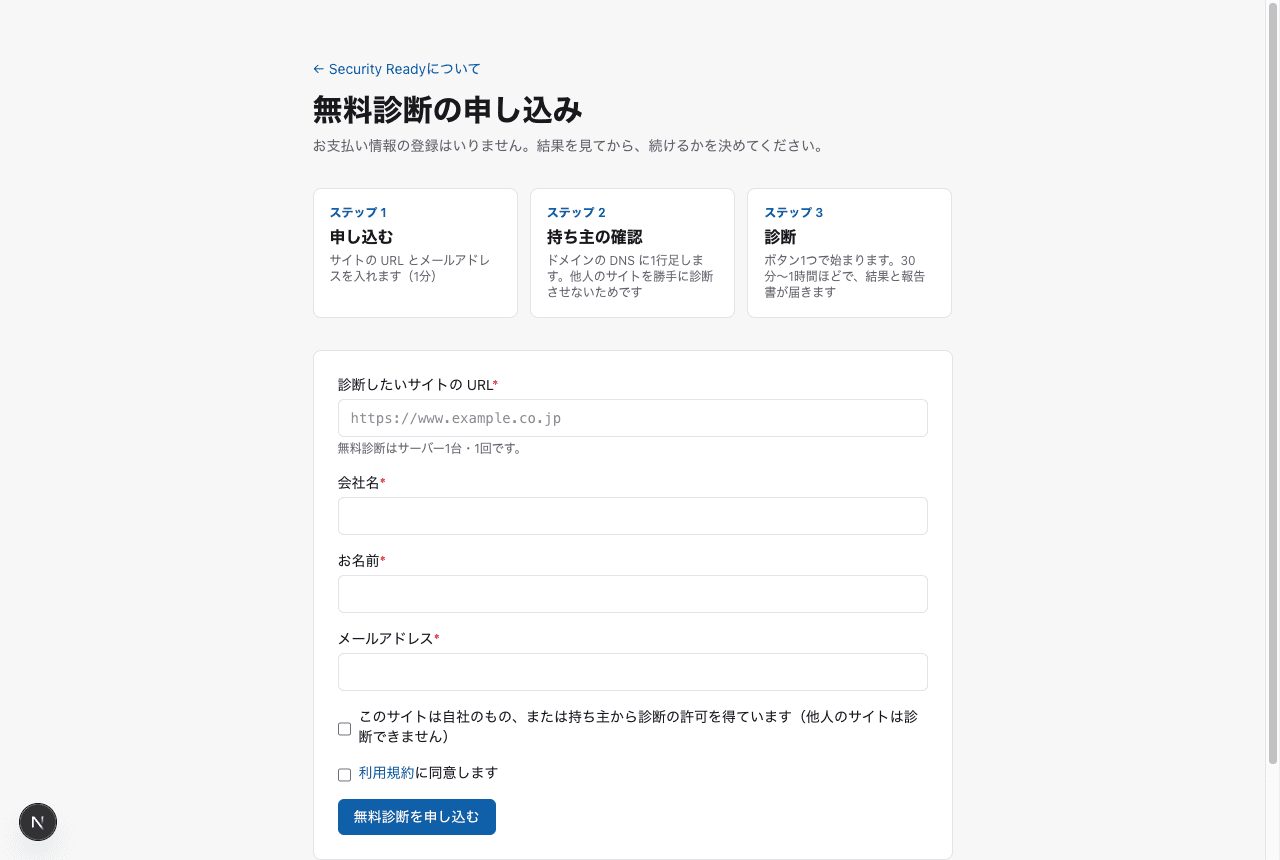
From the second time on, choose “No password set? Get a login link by email” on the login page and enter your email address; a login link will be sent to you. Each link works only once and for one hour. If you ask for a new link, the previous one stops working.
3. Confirming you may scan
When you sign up (or on the “Verify a domain” screen), choose your role.
- The site administrator yourself: for example, your own company's site
- An agent with proper authorization from the administrator: for example, a web design or maintenance company that looks after a client's site
Once you also agree that “you are responsible for any damage caused by scanning a site without authorization,” the domain becomes “Verified.” No DNS setup is needed.
For a stronger check, you can also prove ownership by adding one line (a TXT record) to your DNS (“Other methods” on the “Verify a domain” screen). Government and local-authority domains are not scanned on the basis of a sign-up alone.
4. Running a scan
From “Servers” in the menu, open the server you want, then press “Scan now” in the “Scan” box at the very top. Usually, that is all you need to do.
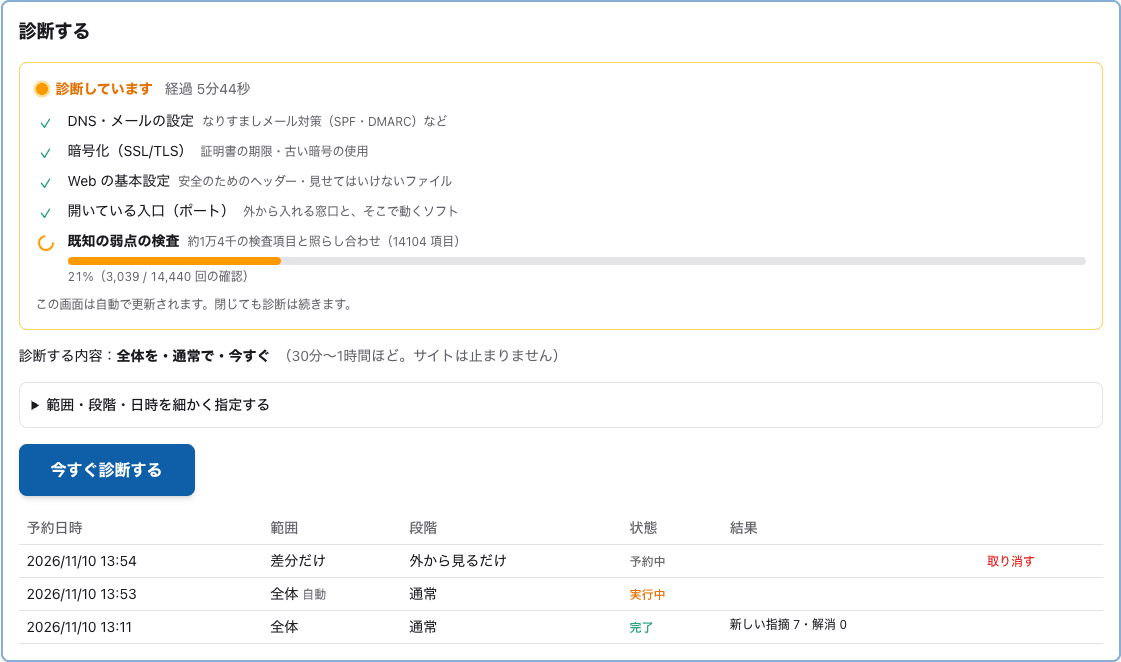
Open “Choose scope, level and time in detail” to change the following.
| Item | Options | When to use |
|---|---|---|
| Scope | Everything / Changes only / Selected areas | “Everything” for the first scan or after big changes. “Changes only” for routine checks (only newly added checks and what changed since last time; faster and lighter on the server) |
| Level | Outside view only / Standard / In-depth testing | “Standard” is the default. “In-depth testing” can only be chosen when there is written consent |
| Date and time | Now / Scheduled | You can schedule a scan for a quiet time such as night (only within the hours set in your authorization) |
5. Watching the progress
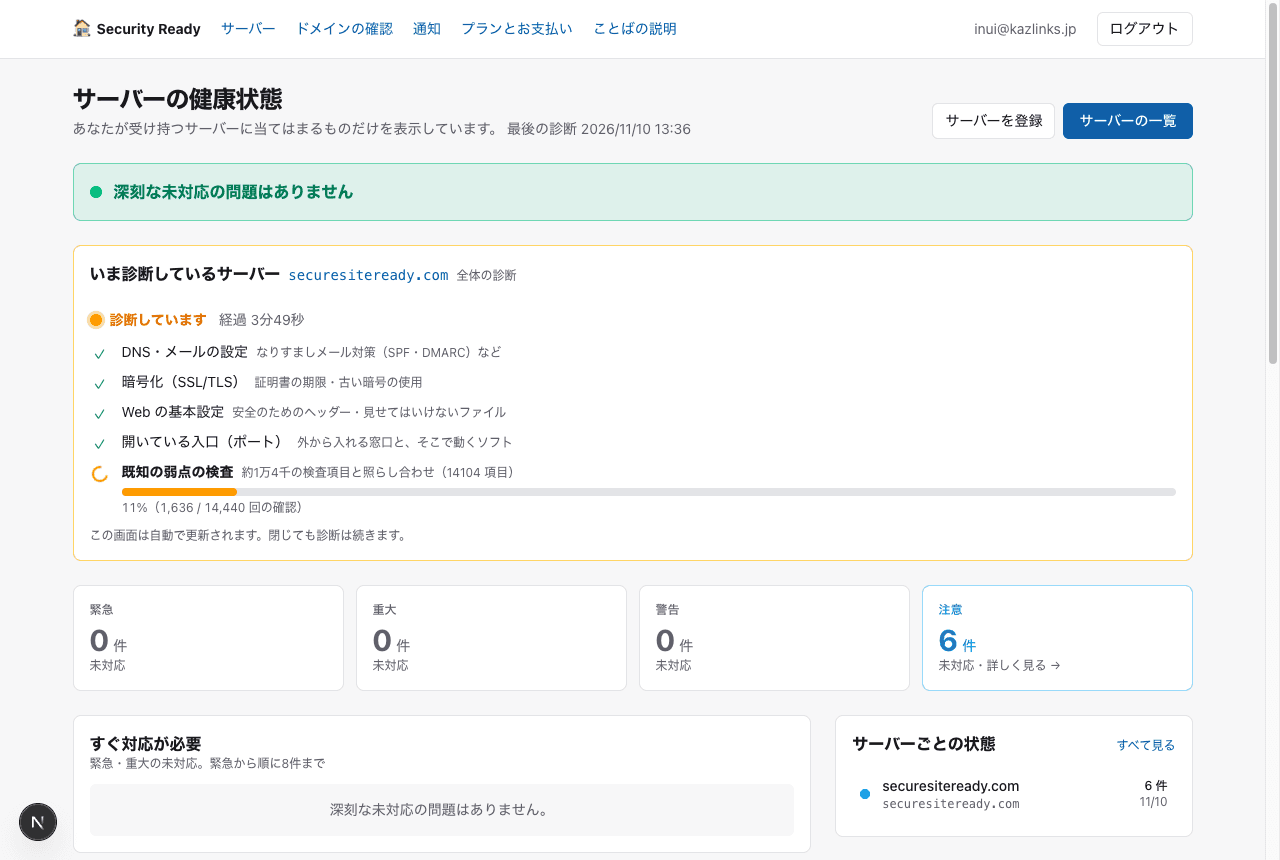
While a scan is running, its progress is shown on the Home page and the server page. Each stage gets a ✓, and the last stage, “checking for known weaknesses,” advances as a percentage. The scan continues even if you close the screen.
6. Reading the results
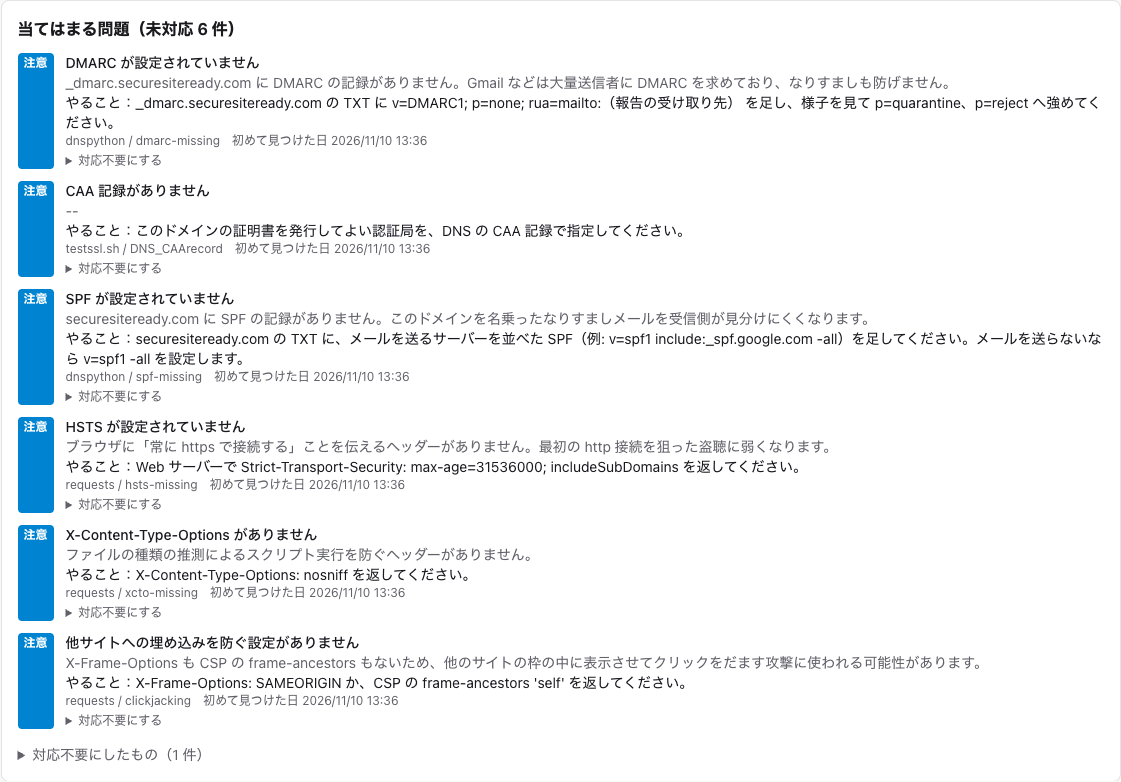
Under “Findings” on the server page, the issues are listed with the most serious first.
| Severity | Meaning | Fix within |
|---|---|---|
| Critical | Already being used in attacks, or could lead to a takeover at any moment | Today |
| High | Could lead to information leaking or being tampered with | 1 week |
| Medium | Could be abused if certain conditions are met | 1 month |
| Low | Improvements that strengthen your defenses | Your next routine maintenance |
- Each issue comes with “What to do.” It is written so you can show it as-is to the company that manages your server.
- After fixing it, press “✓ I fixed it — check again.” We immediately re-scan just that issue, and if it is no longer found, we move it to “Fixed” and record “Confirmed fixed by the check after the fix.” Even if you don't press it, an issue that is not found in the next scan moves to “Fixed” automatically.
- Issues found from the software inside a server (old software, for example) cannot be confirmed from outside. After fixing them, send the server's software list again with the survey program. We confirm the fix at the next matching run.
- If there is a reason not to fix something, you can record it with “Mark as no action needed” and write the reason.
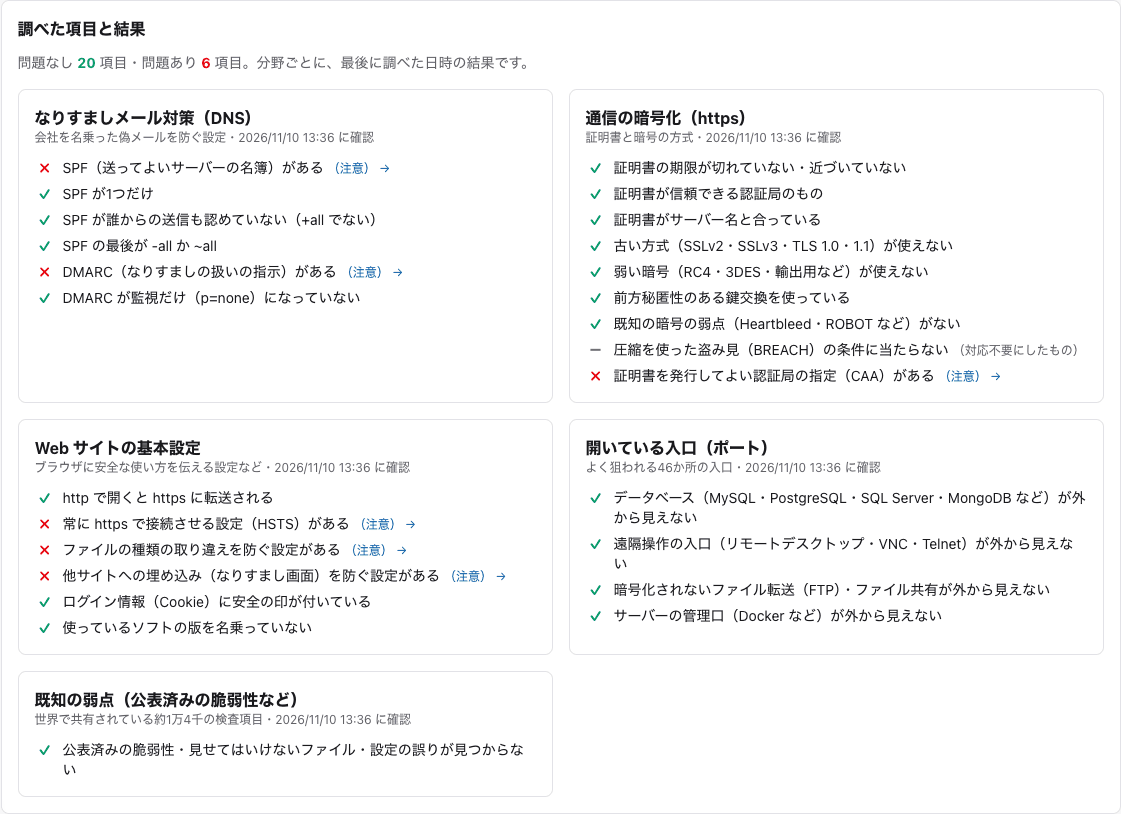
7. What we checked and the results
Items with no problems are also listed, grouped by area. ✓ means no problem, ✗ means a problem, and – means you marked it as no action needed. Use it to explain “what was checked and what was fine.”
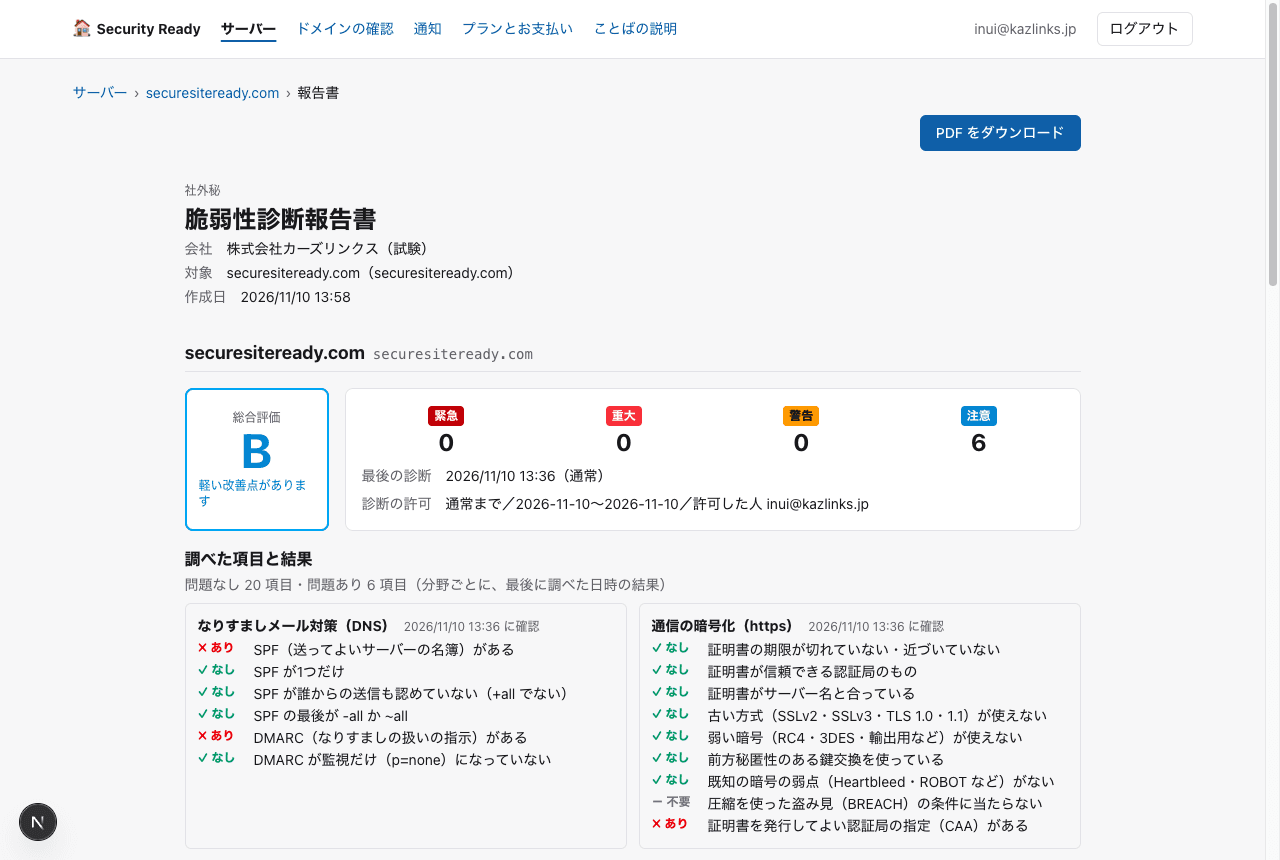
8. Reports (on screen and PDF)
Open them with “View report” or “Download PDF” on the server page. A report brings together the overall rating, what was checked and the results, the issues found and what to do, what was fixed during the period, and the server's software. You can also create a report for your whole company. When there are open issues, the report shows a short scenario of where “if I were an attacker” I would aim, and sums up “fix this today and this scenario is stopped” (it is built only from the issues found; we did not actually try the attack). The reports themselves are currently written in Japanese.
9. Regular and automatic scans
In “Regular and automatic scans” on the server page, choose weekly (day of the week) or monthly (day of the month) and a time, and the scan runs automatically at that time. Turn on “Do a light outside check every day” and every day at the same time we check the certificate, DNS and web headers (except on the day of the regular scan). Turn on “Automatically check when a relevant vulnerability is found” and, when the twice-daily matching run (6:00 and 18:00 JST) finds a vulnerability that applies to you, we run a scan that checks just that vulnerability.
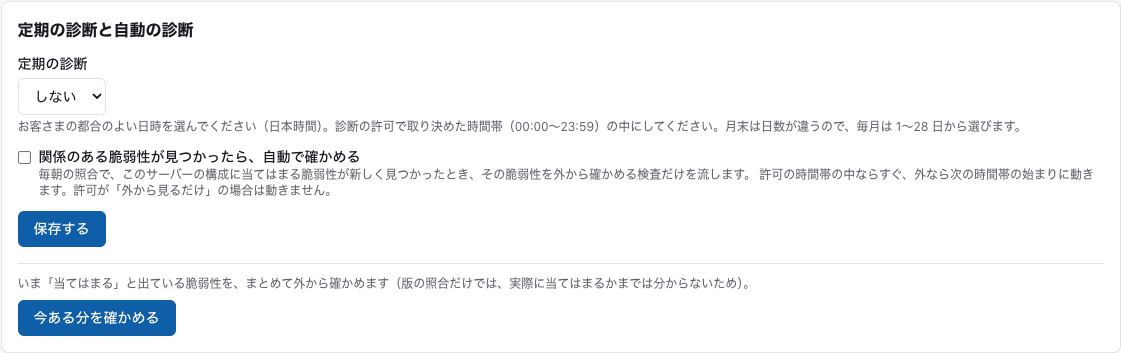
Available when you are on a plan.
10. Internal scan (looking inside servers and PCs)
The internal scan looks inside your servers and PCs, at things a scan from outside cannot see (Standard plan). Run the short, read-only “survey program” and the results arrive automatically. It changes nothing, installs nothing, changes no settings and does not keep running in the background. The program is plain text, so you can read it before you run it (the top of the file says what it reads and what it does not send).
How to set it up
| Target | How to set it up | Automatic daily sending |
|---|---|---|
| Linux servers | Run a one-line command on the server (inventory.sh) | Add one line to cron |
| Windows PCs and servers | Run one line in PowerShell (inventory.ps1) | Register it in Task Scheduler with one line |
| WordPress sites | Install the plugin (security-ready.zip) and paste the key into “Settings → Security Ready.” Works on shared hosting too | The plugin sends every day |
The key and the command appear when you press “Create a key for automatic sending” in the “Survey program” box on the server page. Each server has its own key.
What it checks
| Area | Linux | Windows | WordPress |
|---|---|---|---|
| Old software and late updates | The names and versions of all software installed with the OS package manager (apt, dnf, apk), compared with the fix information from the OS distributor (Ubuntu, Debian, Rocky Linux, AlmaLinux, Alpine), down to the command to update / OS end-of-support date (High if already ended, Low if within six months) | Windows, Office, Flash and so on that are out of support / whether this month's update (cumulative update) is installed (judged by build number) | Whether the installed version of the core, plugins and themes has publicly known vulnerabilities / updates that are available but not installed / plugins no longer distributed / out-of-support PHP / unused plugins left installed (compared with public information from WordPress.org) |
| Main software you installed yourself | Even for software installed without the package manager, we ask for the version directly: nginx, Apache, lighttpd, HAProxy, Squid, PHP, Python, Java, Node.js, MySQL/MariaDB, PostgreSQL, Redis, MongoDB, memcached, Postfix, Exim, Dovecot, BIND, vsftpd, ProFTPD, OpenSSL, OpenSSH, Docker | Versions of main software such as Chrome, Firefox, 7-Zip, Zoom, Java, PHP and MySQL | PHP and database versions |
| Containers | Image names and versions of containers running on Docker or Podman (e.g. mysql:8.0.36). MySQL, Redis, nginx, WordPress and the like go on to matching. For images without a version, such as “latest,” we let you know that the version cannot be tracked | ― | ― |
| Settings review | Whether SSH allows root or password logins / whether the firewall is on / whether databases and the like are listening on the internet side / whether there are users with the same rights as root or with empty passwords (counts only) / whether automatic updates are on / whether updates are waiting for a restart | Whether antivirus (Microsoft Defender) is running with up-to-date definitions / firewall (domain, private, public) / drive encryption (BitLocker) / number of administrators / the old file-sharing protocol (SMBv1) / password length and lockout rules / Guest account / automatic logon | ― |
| Signs of compromise | PHP files in the website folder written in ways typical of backdoors (web shells) / PHP files placed in folders for images and the like / number of PHP files changed in the last 7 days / number of failed SSH logins | ― | ― |
| Other | OS name and version | Remote-control software (TeamViewer, AnyDesk, etc.) / whether Remote Desktop is on / listening port numbers | Site address and automatic update settings |
The main software found (MySQL, nginx and so on) is recorded with its version in the server's “Software” list, and also goes into the twice-daily (6:00 and 18:00 JST) matching against new vulnerabilities. If a critical vulnerability comes out, you get a notification within half a day.
How we check whether patches (fixes) are installed
We check “whether the installed software still has unfixed vulnerabilities” in the following ways, depending on how the software was installed. How reliable the result is depends on the method, and we say so honestly.
| How the software was installed | How we check | Reliability | Information used for matching |
|---|---|---|---|
| Linux OS packages (Ubuntu, Debian, Rocky, Alma, Alpine) | We collect the installed version including the distributor's detailed release number (e.g. openssl 3.0.13-0ubuntu3.4) and compare it with the version the distributor has announced as “fixed in this release.” If it is older than the fixed release, we report “patch not installed” along with the command to update. Distributors often bring in only the fix without changing the version number, but because we compare the full release number, we tell them apart correctly | High | Each distributor's fix information (as collected in OSV) |
| Windows itself | We compare the PC's build number (e.g. 19045.5011) with the “build number that includes that month's fixes” that Microsoft publishes every month. If it falls short, we report “the [month] update is not installed,” with the number of important fixes missing (and how many of them are already being used in attacks). Within 14 days of release it is Low; past that, more than two months behind, or missing a fix that is being used in attacks, it is High | High | Microsoft's monthly update information (MSRC; the last 3 months, loaded every morning) |
| WordPress core, plugins and themes | We compare the installed version with a per-version list of vulnerabilities, down to “this version has a vulnerability that can lead to a takeover.” We also show the gap to the latest version (updates available but not installed) and plugins that are no longer distributed | High | Wordfence Intelligence (vulnerabilities), WordPress.org (latest versions) |
| Main software you installed yourself, and containers (nginx, MySQL, redis:6.2, etc.) | We match the version number (e.g. nginx 1.24.0) against a public vulnerability database (twice a day). When the distributor has brought in only the fix, the version number cannot tell us, so an issue may show as “applies” even though it is fixed. In that case, mark it as no action needed, as described in the issue | Medium (false positives possible) | The US public vulnerability database (NVD) |
| Windows apps (Chrome, Zoom, 7-Zip, etc.) | As above, we match by version number. Out-of-support products such as Office and Flash are recognized by name and reported as “out of support” | Medium | NVD and each vendor's end-of-support dates |
| Other Linux distributions (RHEL, CentOS, Amazon Linux, SUSE, etc.) | We do not match all packages (the distributors' information is split up in detail, and the collected list cannot be matched correctly). We do match the main software (the same as “main software you installed yourself” above) and check the OS end-of-support date | Partial only | NVD and each distributor's end-of-support dates |
- On Windows, builds not covered by Microsoft's recent updates (such as out-of-support versions) cannot be judged by build number, so we give a rough guide based on the date the last update was installed (Low at 60 days, High at 120 days).
- The information used for matching is refreshed every morning (6:00 JST) and evening (18:00 JST). If a new vulnerability is published and applies to your software, you get a notification within half a day.
- The information about your servers and PCs is refreshed each time the survey program sends it. If you set up automatic daily sending, an issue moves to “Fixed” the day after you install the update.
- Per-version vulnerability matching for WordPress starts once our Wordfence Intelligence registration is complete. Until then, we report only the gap to the latest version and plugins that are no longer distributed.
Support by Linux distribution
| Distribution | Matching of all packages | OS end-of-support date | Main software, containers, settings review, signs of compromise |
|---|---|---|---|
| Ubuntu, Debian, Rocky Linux, AlmaLinux, Alpine | ○ | ○ | ○ |
| Red Hat (RHEL), CentOS, CentOS Stream, Oracle Linux, Amazon Linux, SUSE, openSUSE, Fedora | ✗ (main software only) | ○ | ○ |
| Others (Arch, etc.) | ✗ | ✗ | ○ |
End-of-support dates are based on each distributor's announcements (as summarized by endoflife.date) and use the date free security updates end. If you have paid extended support (Ubuntu Pro, RHEL ELS, etc.), write that as the reason when you mark the issue as no action needed.
What we do not send
We do not send file contents, configuration files themselves, passwords, user names, email, browsing history, or WordPress posts or member data. For signs of compromise, we send only the count and the file locations. For automatic logon, we only check “whether it is set up” and do not read the saved password.
Reading the results
The results appear as a table of ✓ (no problem), ✗ (problem) and ? (not checked) in the “Survey program” box on the server page. Problems are added to “Findings” with how to fix them. If an issue is not found in the next sending after you fix it, it moves to “Fixed” automatically. The review results also back up your answers in the “Partner documents” (METI's rating scheme, ★3) on knowing your devices, administrator accounts, passwords, secure settings, updates, antivirus and perimeter defense.
Things that cannot be read without administrator rights (Linux password settings and containers; BitLocker and SMBv1 on Windows, etc.) are not guessed as “no problem”; they are shown as “not checked.” Run the program with sudo (on Windows, with “Run as administrator”) to check them.
What it cannot do (honestly)
- Signs of compromise are just a count of things that match common patterns. Finding something does not necessarily mean you were compromised, and finding nothing is not a guarantee of safety (so we rate these Low at most). We do not look for signs of compromise on Windows.
- For plugins distributed outside WordPress.org (paid or self-made), we cannot tell the gap to the latest version (we do match them if they are in the vulnerability list).
- We do not look at components a web app uses internally (installed with Composer or npm), or at software other than the above that was simply copied onto the server without a package manager.
- We do not check whether Linux has antivirus (in the partner documents, please answer this in the self-check).
- It is not a system that watches and blocks traffic in real time (such as UTM or EDR).
If you cannot run the survey program, for example on shared hosting, you can still use the scan from outside (for WordPress, you can use the plugin).
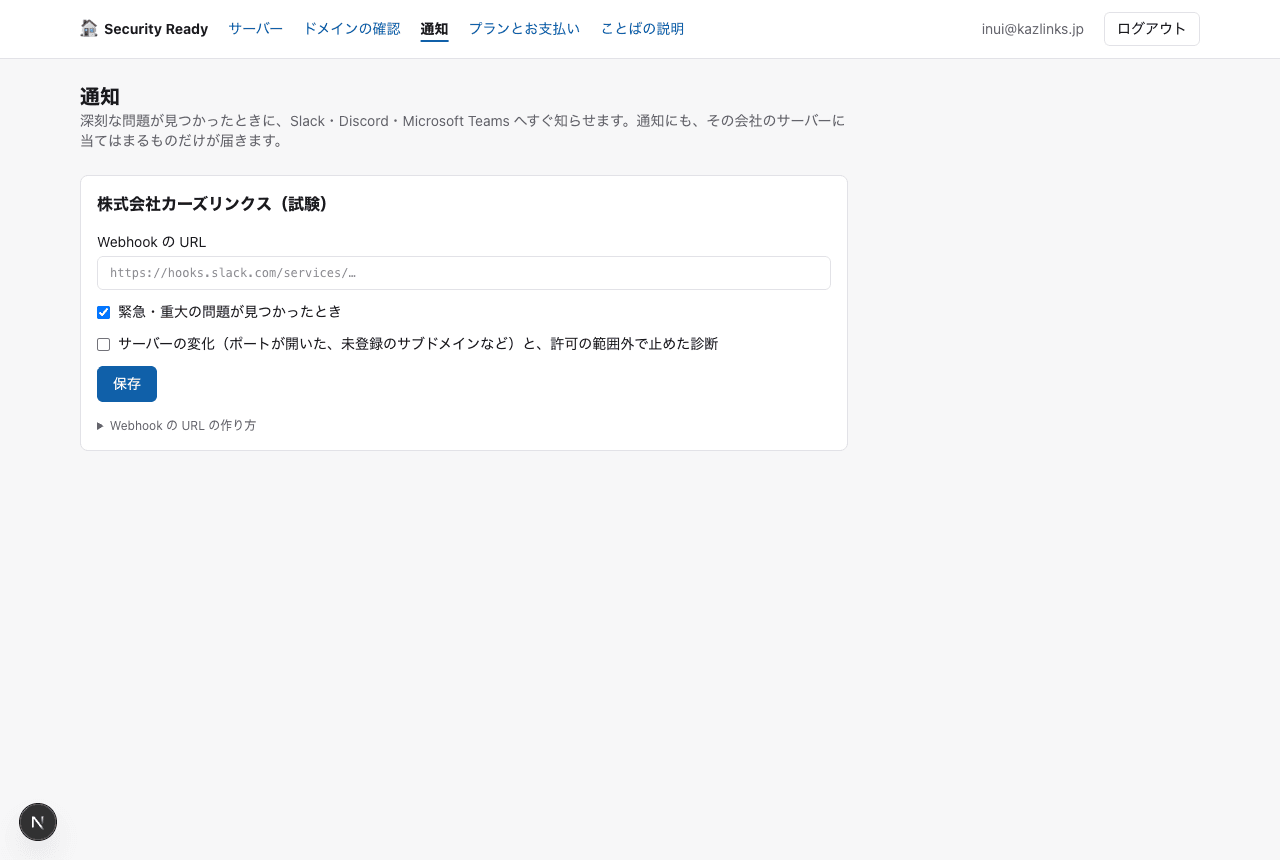
11. Notifications (email and chat)
On the “Notifications” screen, you can set where to send alerts when a serious problem is found (Slack, Microsoft Teams, Discord). Use “Send a test” to check that it arrives.
12. Home (dashboard)
Open it with “🏠 Security Ready” at the top left. In one place you can see: the number of issues by severity (click to go to that list); your security score (100 minus the weight of the issues you have not fixed; if you choose your industry, once there are enough companies to compare, it shows which top percentage you are in within your industry and overall; we never show other companies' names or scores to anyone); entry points you may not know about (subdomains we search for every morning from sources such as public certificate logs that you are not yet monitoring; ones whose destination has disappeared and could be taken over are shown in red and you are notified right away); what needs action now; new vulnerabilities relevant to you; changes on your servers; running and scheduled scans; and what is running automatically.
13. Plans and payment
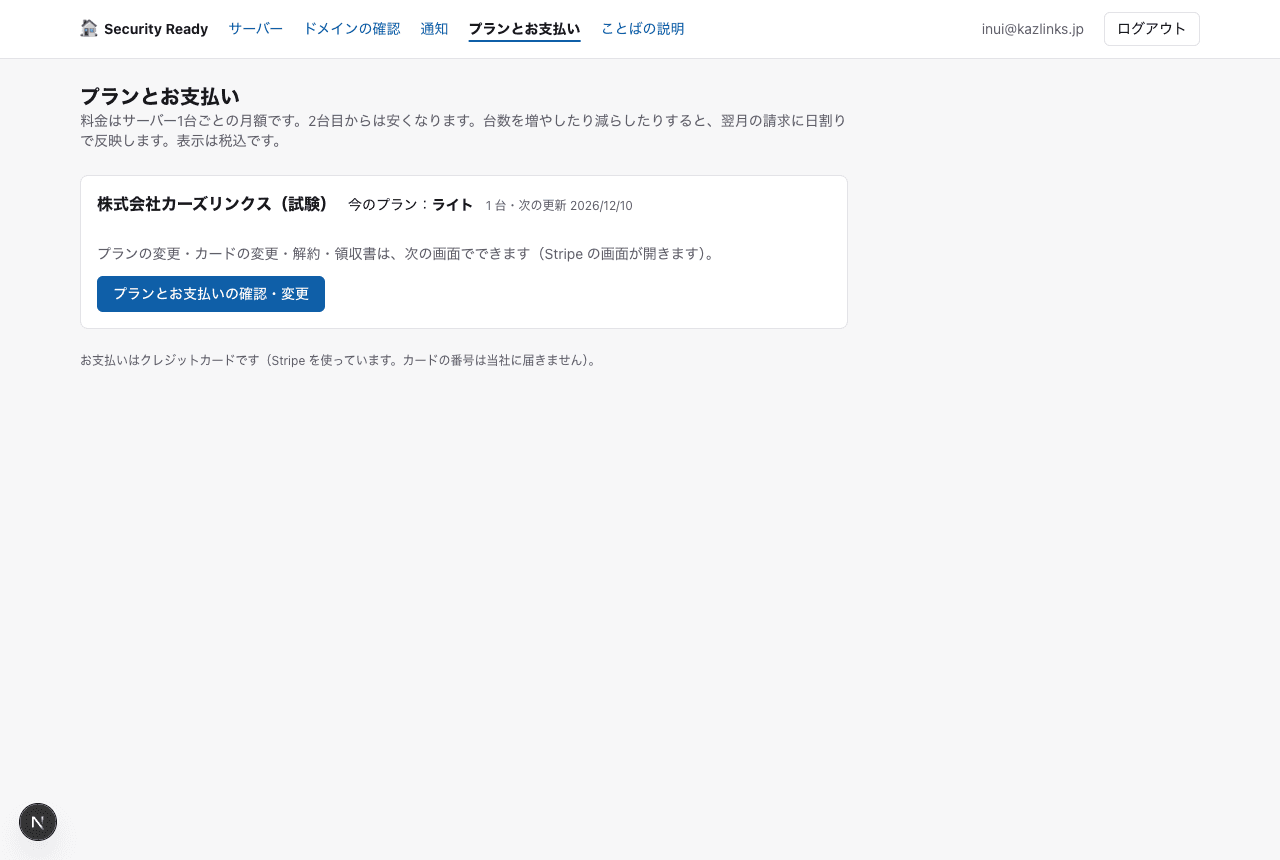
After the free in-depth scan, if you want us to keep watching, sign up from “Plan & billing.” Payment is by credit card (your card number never reaches us). Prices start at USD 19 per server per month. If you add servers, the change is reflected pro rata in the next month's bill. You can also change your plan, change your card, cancel and get receipts on the same screen.
14. Scan authorization
In addition to confirming ownership, we record the authorization for “what may be checked, until when, and between which hours.” Any scan beyond the authorization is stopped automatically at two points: when it is requested and just before it runs. For the free in-depth scan, an authorization valid for that one day only is recorded automatically, based on what you confirmed when signing up.
15. Troubleshooting
| If this happens | Do this |
|---|---|
| The login email doesn't arrive | Check your spam folder. If it still doesn't arrive, wait a little and request it again, just once |
| The login link doesn't work | Each link works only once and for one hour. When you ask for a new link, the earlier ones stop working. Use the link in the newest email |
| It says “already registered by another company” | Another company registered the same domain first. Contact us through “Contact us.” We will look into it and respond |
| “Scan” doesn't appear | One of the following is not done yet: confirming you may scan, scan authorization, or a plan. Follow the guidance on screen |
| The other company contacted you about a scan | Tell them the date and time of the scan and the authorization record. If you want to stop it right away, contact us |
For anything else, please contact us.
16. Partner documents (Japan's METI SCS ★3)
Open it with “Partner documents” in the top menu. It creates the document you use when a large business partner asks you to “show the status of your security measures.” It follows ★3 (the minimum level expected of every supplier; 26 items) of the “Security Measures Rating Scheme for Strengthening Supply Chains (SCS rating scheme)” of Japan's Ministry of Economy, Trade and Industry (METI) and IPA.
- Items that scans can answer are filled in automatically. Knowing your PCs and servers, entry points exposed to the internet, secure settings, out-of-support software and updates within 14 days, and perimeter defense (risky ports and exposed admin screens) are rated “No problems / Some concerns / Needs fixing” from your scan records.
- Items that scans cannot answer, such as internal company rules, are a self-check. For each item, choose “Done / Partly done / Not yet / Not applicable,” write a few words on how you handle it, and save (only company administrators can save).
- “Create the PDF for partners” turns it into a document with your company name and the date.
This document is not ★3 registration itself. Registration requires the procedure set by IPA and a check by the person responsible for confirmation. The description of each item is a summary based on IPA's “SCS-400 ★3/★4 Requirements and Evaluation Criteria” (Ver. 1.1).